How to export a WhatsApp chat as a TXT or ZIP file
This guide explains how to export a WhatsApp chat for dry text analysis: open the conversation in the WhatsApp mobile app, choose Export chat, and select Without media. Save the text export, then check its contents and file size before uploading it.
Try the free previewWhatsApp export steps at a glance
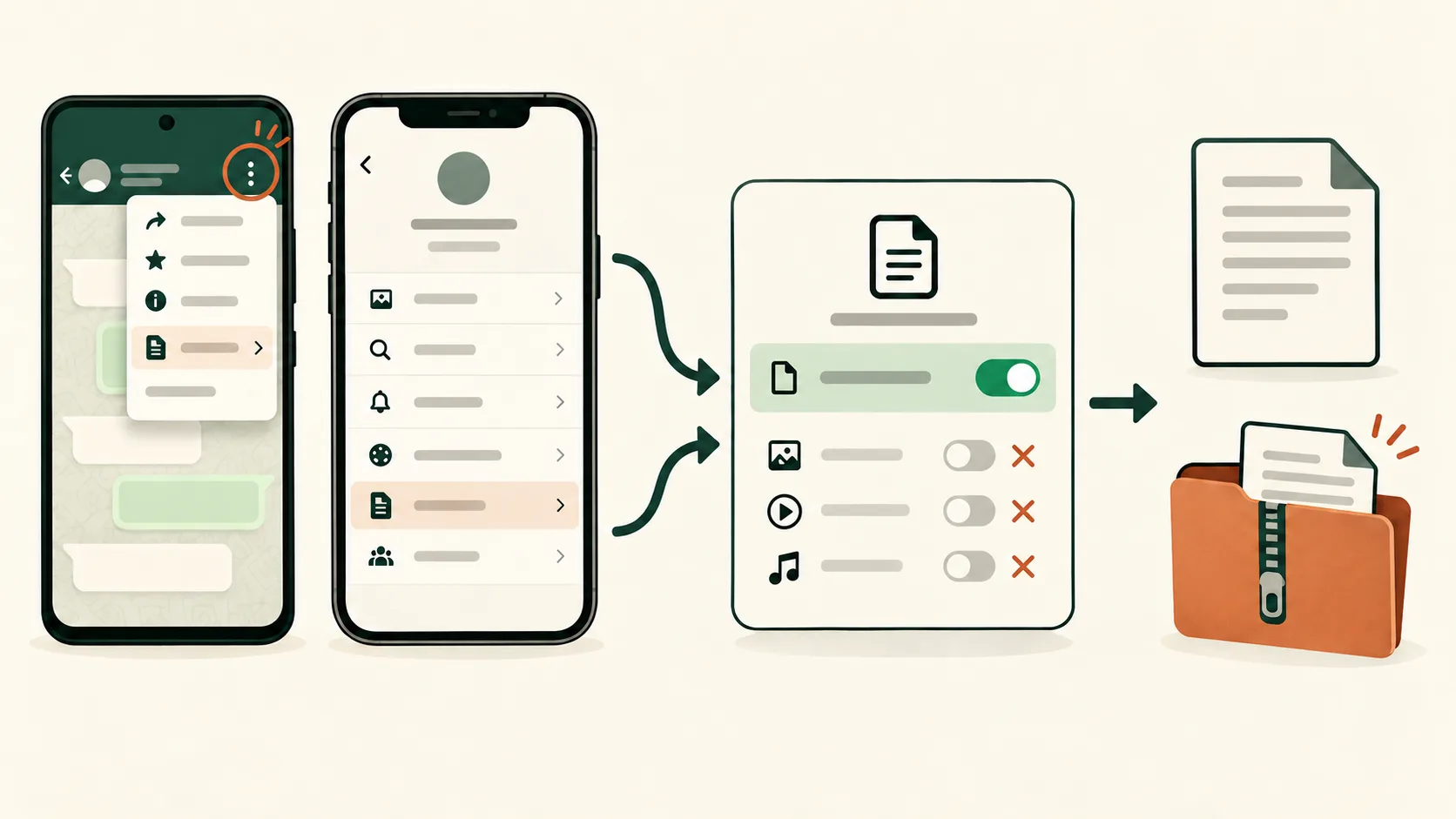
- Android: choosing Without media produces a text export you can save as a TXT file.
- iPhone: WhatsApp’s iOS Help Center describes the chat export as a ZIP archive. Upload the ZIP with its original extension; DryText extracts the text transcript in your browser.
DryText’s 25 MB TXT and 100 MB ZIP limits describe what the analyzer accepts. They do not describe a WhatsApp export-size or message-count guarantee. Check the transcript and participants before upload.
This overview shows the file path for a text-only WhatsApp export. It does not replace WhatsApp’s device-specific menus, which can change between app versions.
How to export a WhatsApp chat on Android
- Open the individual or group conversation you want to export.
- Tap More options (the three-dot menu), then More, and choose Export chat.
- Choose Without media so the export focuses on messages instead of attaching photos, videos or voice notes.
- Pick a destination you control, such as a private file location, and save or share the export.
These are the steps in the WhatsApp Help Center for Android. The share-sheet options and labels can differ by device and app version.
How to export a WhatsApp chat on iPhone
- Open the individual or group conversation in WhatsApp.
- Tap the contact or group name at the top to open its information screen.
- Choose Export Chat, then select the text-only option if WhatsApp asks whether to attach media.
- Use the iPhone share sheet to save the file somewhere private or send it to an app you trust.
See the WhatsApp Help Center for iPhone for the current export controls. If your screen looks different, follow the instructions for the version installed on your phone.
TXT and ZIP limits for DryText
DryText accepts a WhatsApp TXT transcript up to 25 MB or a ZIP archive up to 100 MB. A TXT file extracted from a ZIP must also be no larger than 25 MB. Each transcript can contain up to 50,000 messages.
- TXT: upload the exported text file directly.
- ZIP: upload the archive with its original extension. DryText extracts the text on your device and uses the largest supported TXT file it finds, so keep only the intended conversation in the archive.
- Media: images, video and audio are not analyzed. Export without media; if a ZIP is too large, create a new text-only export.
If a TXT exceeds the limit or contains more than 50,000 messages, make a separate, shorter transcript copy or paste a representative excerpt. Keep timestamps and consistent speaker labels so messages stay readable, and retain the original export unchanged. Then continue to the WhatsApp chat analyzer.
Privacy checks before you upload a WhatsApp chat
- Open the saved file and confirm it is the right conversation, participants and message range.
- Remove unrelated details and sensitive information you do not need. If you replace names, use the same label consistently and preserve message timestamps and speaker separators.
- For a group chat, consider the privacy expectations of everyone whose messages are included. Upload only a conversation you are authorized to process.
- Store and share the export privately. Avoid public links and shared folders that expose the transcript to other people.
ZIP extraction happens in your browser, but the resulting transcript is uploaded to create the report and sent to the configured AI provider. A TXT upload is also sent for analysis. Read the Privacy Policy and safety and retention details first; you can delete a chat sooner from your account, while automatic transcript deletion follows the published retention window.
If WhatsApp will not export the conversation
WhatsApp’s Advanced Chat Privacy guidance says that chats with this setting enabled cannot be exported. Check the setting in WhatsApp and follow the people or group’s privacy choice rather than trying to work around it.
An exported chat is a readable text file, not a restorable WhatsApp backup. If your goal is to move or restore messages on a phone, use WhatsApp’s dedicated chat transfer or backup tools and keep that process separate from text analysis.
Frequently asked questions
How do I export a WhatsApp chat on Android?
Open the conversation, tap More options > More > Export chat, choose Without media, then select where to save or share the text export. Menu labels can vary by WhatsApp version.
How do I export a WhatsApp chat on iPhone?
Open the conversation, tap the contact or group name, choose Export Chat, select Without Media if prompted, and save or share the file.
What file size does DryText accept?
A TXT transcript can be up to 25 MB. A ZIP can be up to 100 MB, and its extracted TXT transcript can be up to 25 MB. The analyzer also accepts up to 50,000 messages per transcript.
Does DryText keep a ZIP chat on my device?
The ZIP is extracted on your device, but the extracted transcript is uploaded for analysis and sent to the configured AI provider. Local extraction does not mean the analysis stays local.
Why is Export chat missing in WhatsApp?
WhatsApp says a chat with Advanced Chat Privacy enabled cannot be exported. Check the setting and WhatsApp Help Center; respect the chat’s privacy controls.
Can I restore an exported chat back into WhatsApp?
No. WhatsApp describes an export as a text file, not a backup that can be imported back into the app. Use WhatsApp’s separate backup feature if you need to restore chat history.